
The tools you use every day, next to the library
Find an icon or a background in the library, apply it, then ease, align and animate it from the same panel. Every tool is one click and one Undo step.
- One click, one Undo step
- The everyday tools are free
- Your AI assistant can use them
Every tool, panel by panel
Each panel opens from an icon at the top of the Tools tab. Here is what every tool does and how to use it.
Ease and keyframes
-
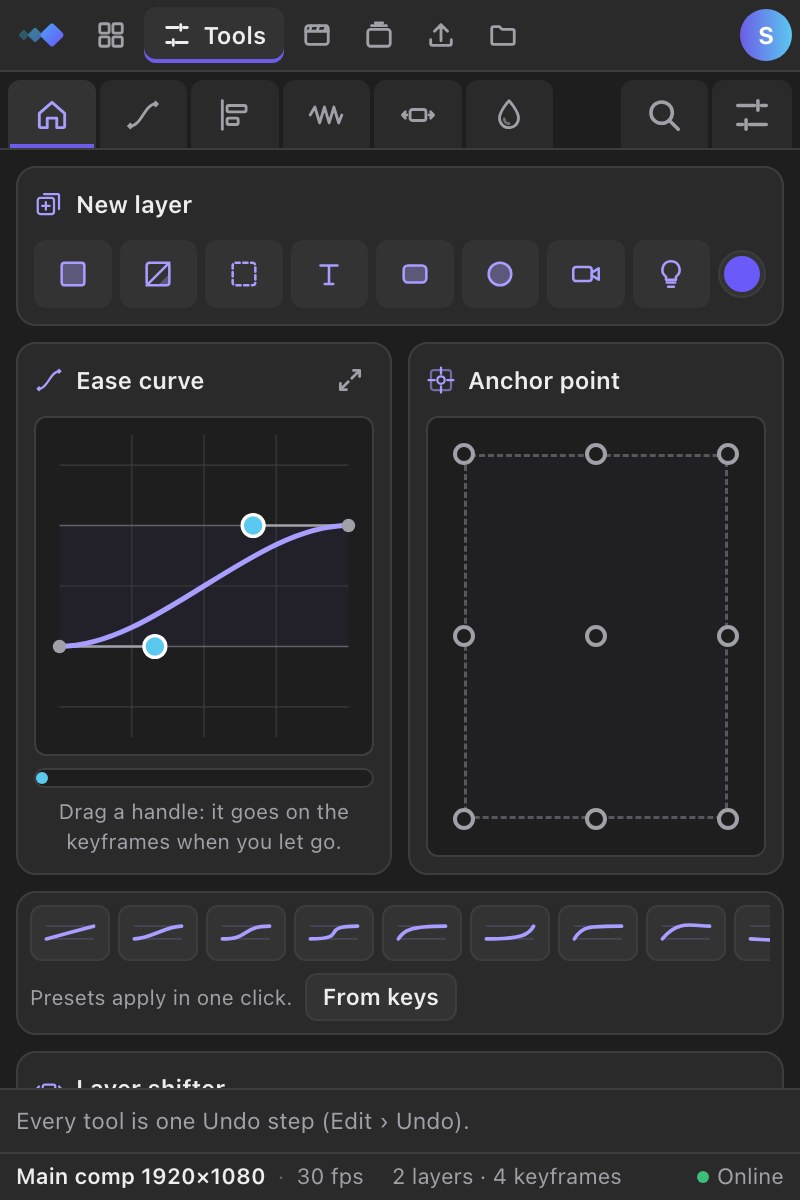
Ease Free
Shape the curve between keyframes, overshoot included.
How to use it
Select keyframes, then drag a handle of the curve or click a preset: the curve goes on the keyframes as soon as you let go. -
Copy and paste ease Premium
Copy the ease of two keyframes and paste it on any others.
How to use it
Select two keyframes and click Copy ease, then select other keyframes and click Paste ease. -
Trim to keys Free
Trim each layer to its first and last keyframe.
How to use it
Select layers and click Trim to keys: each one now starts at its first keyframe and ends at its last. -
Bake expressions Premium
Turn expressions (wiggle, loops) into keyframes.
How to use it
Select layers with expressions and click Bake: each expression becomes one keyframe per frame, ready to edit. -
Clean keyframes Premium
Remove keyframes that repeat the same value.
How to use it
Select layers and click Clean keyframes: repeated keyframes go, the motion stays exactly the same. -
Reverse keyframes Premium
Play the selected keyframes backwards, eases mirrored.
How to use it
Select keyframes and click Reverse keyframes: they play backwards, eases and paths mirrored.
Align and anchor
-
Fit to comp Free
Scale layers to fill or fit the comp, then center them.
How to use it
Select layers and click Fill, Fit, Width or Height: they scale to the comp and land in the center. -
Anchor point Free
Move the anchor point to any of 9 points without moving the layer.
How to use it
Select layers and click one of the 9 points: the anchor moves there and the layer stays put, even rotated or scaled. -
Align Free
Line layers up with the comp or with each other: edges and centers.
How to use it
Select layers, choose Comp or Selection, then click an edge or Center. Alt-click aligns to the other one. -
Distribute Premium
Space 3 or more layers evenly, across or down.
How to use it
Select 3 or more layers and click Horizontally or Vertically: the first and last stay, the others space out evenly. -
Flip Free
Mirror layers across or down, keyframes included.
How to use it
Select layers and click Horizontally or Vertically: they mirror around their anchor point. -
Crop comp Premium
Resize the comp to the selected layers. Nothing moves on screen.
How to use it
Select layers and click Crop comp: the comp takes their size, animation included, nothing moves on screen.
Motion and rigs
-
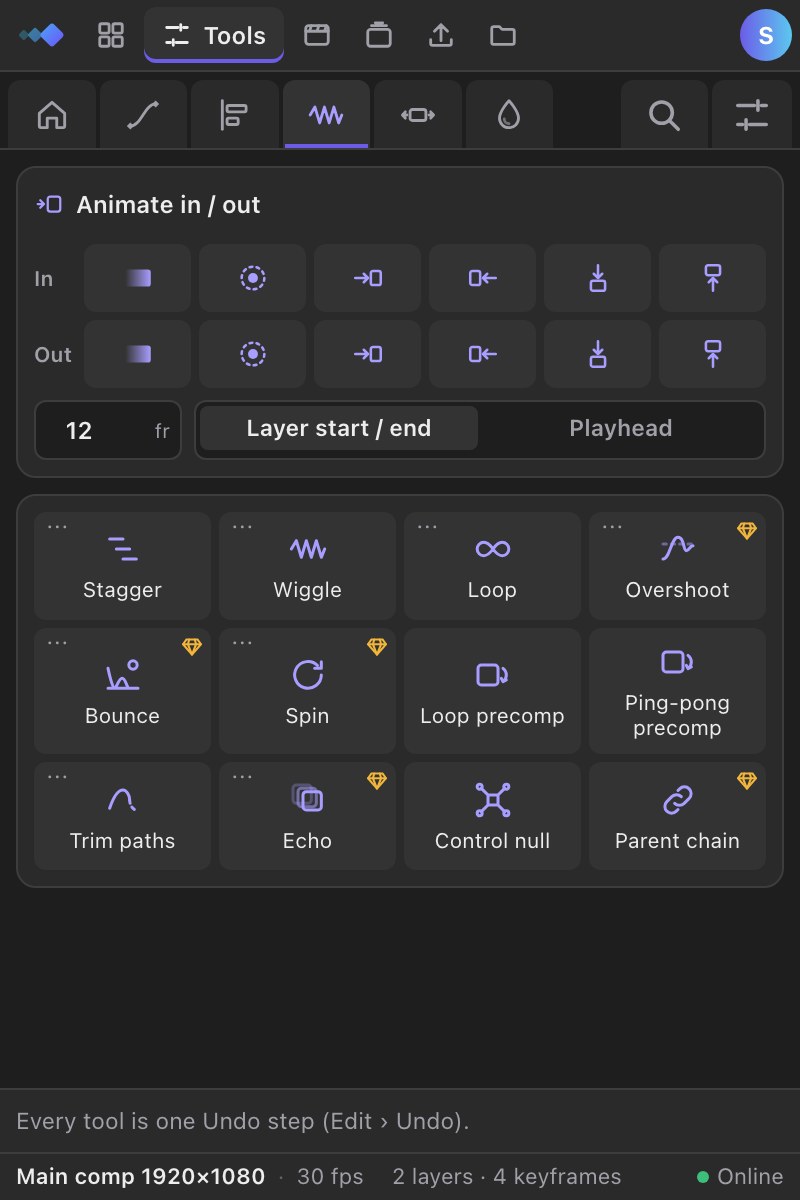
Stagger Free
Offset layers in time, one after the other, or end to end.
How to use it
Select layers in the order you want, choose the frames between them (or end to end) and click Stagger. -
Animate in / out Free
Fade, pop or slide layers in and out, eased, in one click.
How to use it
Select layers, choose the length in frames, then click Fade, Pop or a Slide direction under In or Out. -
Loop precomp Free
Loop a precomp (any Keyloom item) to the end of the comp.
How to use it
Select a precomp, any Keyloom item, and click Loop precomp: it repeats until the end of the comp. -
Trim paths Free
Draw shape layers on with animated Trim Paths.
How to use it
Select shape layers and click Trim paths: they draw on from the layer's start or the playhead. -
Echo Premium
Copies of a layer, each a little later and fainter.
How to use it
Select a layer, choose how many copies and the frames between them, then click Make copies. -
Wiggle Free
Random shake on any property, with sliders to change it later.
How to use it
Select a property (or a layer for its Position) and click Wiggle; change speed and amount later on the sliders. -
Loop Free
Repeat an animation forever: cycle, ping-pong, offset or continue.
How to use it
Select animated properties and click Loop: the animation repeats after its last keyframe. -
Overshoot Premium
Spring past each keyframe, then settle. Amount, speed and decay on sliders.
How to use it
Select animated properties and click Overshoot: the value springs past each keyframe and settles. -
Bounce Premium
Bounce where the animation lands, like a ball, with elasticity and gravity.
How to use it
Select animated properties and click Bounce: the value bounces where it lands, like a ball. -
Spin Premium
Turn layers forever at a steady speed.
How to use it
Select layers and click Spin: they turn forever; the speed is a slider on the layer. -
Control null Free
A null in the middle of the selection, parent of every selected layer.
How to use it
Select layers and click Control null: a null appears in their middle, parent of all of them. -
Parent chain Premium
Each layer becomes the child of the one selected before it.
How to use it
Select layers in order and click Parent chain: each one follows the one selected before it.
Layers and comps
-
New layer Free
Make a solid, null, text, shape, camera or light in one click.
How to use it
Click Solid, Adjustment, Null, Text, Rectangle, Ellipse, Camera or Light on the Tools home: it lands above your selection, in your color. -
Layer shifter Free
Nudge layers or keyframes in time, or snap them to the playhead.
How to use it
Select layers or keyframes and click −10, −1, +1 or +10 frames, or snap their start or end to the playhead. -
Comp duration Free
Give the comp and every precomp inside it the same length.
How to use it
Type the length (or use the open comp's), choose whether precomps change too, then click Set. Images, text and shapes that reached the end are extended, never stretched. -
Precompose each Premium
Each selected layer into its own precomp, in place.
How to use it
Select layers and click Precompose each: every layer goes into its own precomp, in place. -
Rename layers Premium
Rename and number many layers at once, with find and replace.
How to use it
Select layers, type a pattern like Intro_[n] (and find / replace if needed), then click Rename. -
Reverse layer order Premium
Flip the stacking order of the selected layers.
How to use it
Select layers and click Reverse layer order: the top one goes to the bottom and so on. -
Clean up Premium
Remove turned-off effects, all effects or expressions from the selected layers.
How to use it
Select layers and choose what to remove: turned-off effects, all effects or expressions.
Color
-
Color Premium
Set the fill or stroke of shapes, text, solids and images.
How to use it
Pick a color with the swatches, sliders or hex code, select layers and click Fill or Stroke.
Library first, tools right after
-
1
Find and apply
Search the library in Arabic, English or French and apply an item at the playhead. It lands in your comp, selected.
-
2
Polish it
Open the Tools tab: align it, move its anchor point, ease its keyframes or add overshoot, without hunting through menus.
-
3
Check in one click
Settings › Check all tools runs every tool on a test comp in your own After Effects and shows what works.
Your AI assistant can use them too
Connect Claude, ChatGPT or Cursor to Keyloom: the assistant finds items, places them in your comp, then uses the same tools on what you selected.
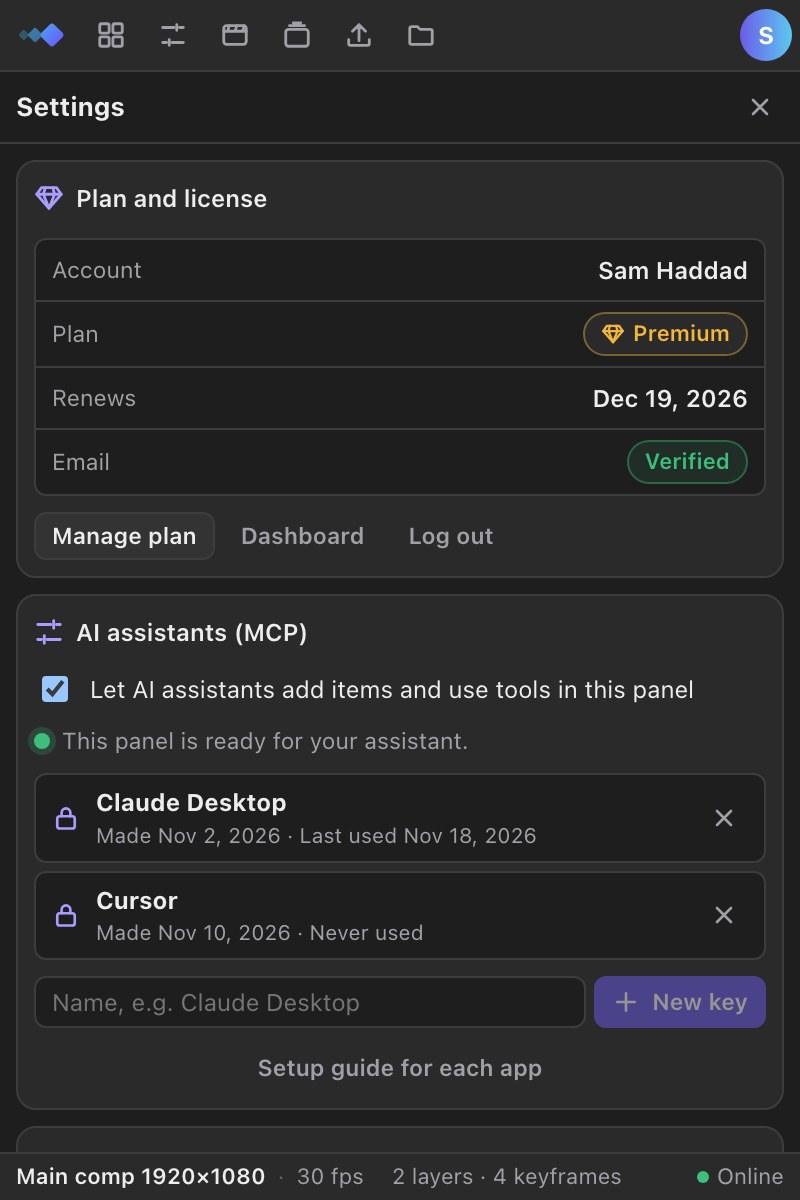
Make the key right in the panel: Settings › AI assistants gives you the link or the config to paste in your app.
For example
“Add a rocket icon at 2 seconds, center it in the comp and give it a strong ease with a little overshoot.”
search_library· rocketadd_to_after_effects· at_time 2use_after_effects_tool· align · centeruse_after_effects_tool· ease · stronguse_after_effects_tool· overshoot
Unlock every tool
The everyday tools are free. Premium unlocks all of them, every Premium item in the library and the AI features, for $4.99 a month.
Go Premium